

A freelancer finishes a project. A new developer joins for a month. You want Claude Code to fix a broken plugin on a client site tonight.
Each of those people and tools needs access to the site. Until now, that often meant sharing one SSH key or one set of credentials, then resetting them for everyone once the work was done. It also meant no clear answer when a client asked who could reach their files.
WordPress.com now lets you give each person, pipeline, and AI agent its own SSH key. You can revoke any one of them without touching anyone else’s access.
What’s new
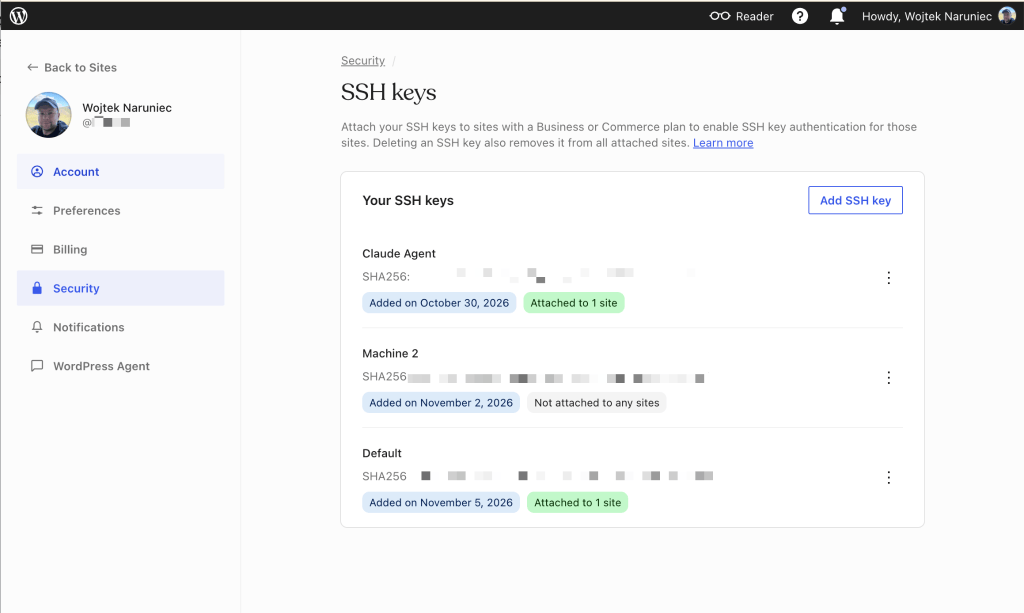
Up to 10 keys per account
Give each one a label, like “MacBook,” “CI deploy,” or “Claude: Acme client,” and rename it any time.
Several keys on one site
Attach as many of your keys to a site as you need, alongside keys from your teammates.
Hardware security keys
Use YubiKey-style hardware keys if your clients expect stronger authentication.
Your existing key keeps working
It now shows up as “Default,” so nothing breaks when you add more.
Works on any paid WordPress.com site with SSH turned on.
Three ways agencies can use it
1. Offboard someone in one step
When everyone shares one key, one person leaving means new credentials for everyone, on every client site they touched.
With one key per person, nothing else has to change. Remove that person from the client site, or detach just their key. Their access is gone, and the rest of your team keeps working.
The same goes for deploys. Give GitHub Actions, Buddy, or Bitbucket Pipelines their own labeled key, so they keep running when someone leaves. Less time resetting credentials across client sites means more time on billable work.
2. Give AI agents their own access
More agencies are using AI coding agents like Claude Code for hands-on work: running WP-CLI commands, editing theme and plugin files, and fixing errors. Those agents shouldn’t use your personal key.
Say a plugin update takes a client’s site down at 6 p.m. Here’s how that evening goes:
- You generate a new key pair for the agent and add it to your WordPress.com account as “Claude: Acme client.”
- You attach that key to the one client site that needs fixing.
- Claude Code connects over SSH, uses WP-CLI to find and deactivate the plugin that broke things, and confirms the site is back.
- You detach the key, and the agent’s access ends.
A quick safety tip: where you can, let the agent work on a staging site first, and make sure you have a recent backup before it changes anything in production.
The agent never uses your personal key, and it can only reach the site you attached its key to.
The agent does the work. You stay in charge of what it can reach, and for how long.
3. Hand off client sites cleanly
Many builds involve more than one team. The client’s in-house developer or another vendor may need access while you work.
They add their own key to the site, next to yours. At handoff, you remove your agency’s keys and theirs stay. No password resets and no shared logins to sort out.
How to set it up
- In your WordPress.com account, go to Security → SSH keys and add a key for each person or tool. Give each one a clear label. Teammates add their own keys in their own accounts.
- Open the client site’s Settings → SFTP/SSH, turn on SSH, and attach the keys you need.
- Teammates who aren’t the site owner need to be Administrators on that site before they can attach their own keys.
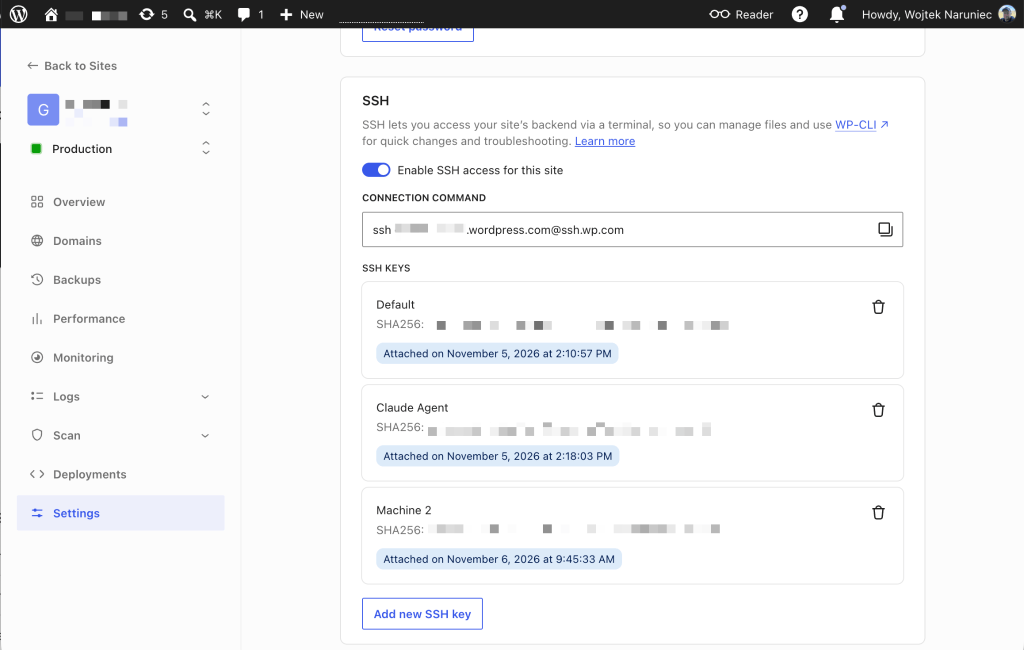
For step-by-step details, see the SSH guide.
Manage your WordPress.com client sites in one place
Automattic for Agencies brings your WordPress.com client sites, team, and billing into one dashboard. Add your team to client sites, give each person and tool its own key, and remove access cleanly when a project ends.


