


Working in a local environment offers unmatched convenience and efficiency when developing WordPress sites. Whether building custom themes, testing plugin updates, or managing complex client projects, a local WordPress development environment makes for faster work, no risk of downtime, and easier troubleshooting.
But with a range of local development tools available, how do you choose the right one?
We’ve compiled a list of the top ten local WordPress development environments for 2024 to help you make an informed decision. Whether you need a simple setup or a more in-depth solution for managing multiple sites, these tools streamline the development process.
Before we dive into the list, if you run an agency, consider joining Automattic for Agencies. This program gives you access to a centralized dashboard to manage client sites and licenses, discounted pricing on powerful tools like Jetpack and WooCommerce extensions, top-notch support, a share of revenue for referring the products you already love, and much more.
Members can also build up to five development sites simultaneously on WordPress.com—completely free, with no upfront hosting costs. These Development Licenses are perfect for testing new features, building prototypes, or running internal projects before going live. It’s a perk exclusive to Automattic for Agencies members.
Automattic for Agencies is a must-have for companies looking to scale efficiently, generate recurring passive revenue, and offer even more value to their clients. Learn more about Automattic for Agencies and how it can help your business.
1. Studio by WordPress.com
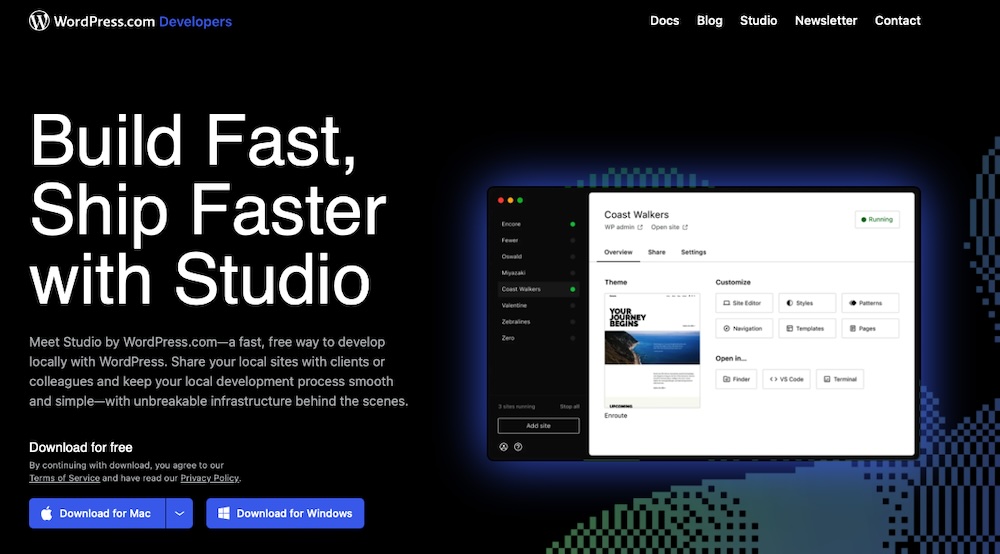
Studio by WordPress.com is a WordPress development environment created by Automattic and designed specifically for agencies and developers looking to streamline their local development process when building client sites. It’s designed to support everything from plugin testing to theme development and provides a cloud-based infrastructure that mirrors a live WordPress environment.
One of the standout features of Studio is its integration with WordPress.com. Deploying local changes to a live site is effortless and the tool ensures that development and production environments are always in sync.
Highlights of Studio:
- It’s a fully cloud-based development environment. Team members can avoid local installations and work effectively across a variety of operating systems. Plus, it’s easy to scale and reduces the risk of widespread data loss.
- It provides automatic syncing with WordPress.com sites. This helps your agency streamline project delivery and skip right over any bottlenecks.
- Setup is quick with pre-configured WordPress instances. Get your team started on new projects much faster.
- You get access to Automattic’s extensive suite of developer tools. These enhance and simplify project management and development processes across your organization.
Studio by WordPress.com offers a unique solution for agencies working across multiple client sites, enabling rapid testing and deployment with minimal setup. For agencies seeking an all-in-one, cloud-based option, Studio is worth exploring.
Bonus: If you’re part of the Automattic for Agencies program, you can take advantage of free Development Licenses to create and manage up to five WordPress.com development sites without paying for hosting.
2. InstantWP

InstantWP is a lightweight, portable WordPress development environment that can be set up in just a few minutes. Ideal for agencies that need a simple, fast solution, InstantWP runs directly from a local machine without requiring server configuration.
One of the major benefits of InstantWP is its portability. Your team members can run it from a USB stick or any external drive. It’s also beginner-friendly, with a simple interface and no complicated setup steps.
Highlights of InstantWP:
- It’s a portable and lightweight option.
- There’s no server configuration required.
- It runs directly from a local machine.
- It has a beginner-friendly interface, so you can onboard new team members faster.
- Setup is quick for testing and development.
Installation Process:
InstantWP is extremely easy to install. You can download the portable application directly from the InstantWP website, extract it to a folder on your computer (or even a USB drive), and launch the application. The tool comes pre-packaged with everything you need, including WordPress, so there’s no need for additional setup or server configuration.
Price:
InstantWP is a free tool.
3. XAMPP
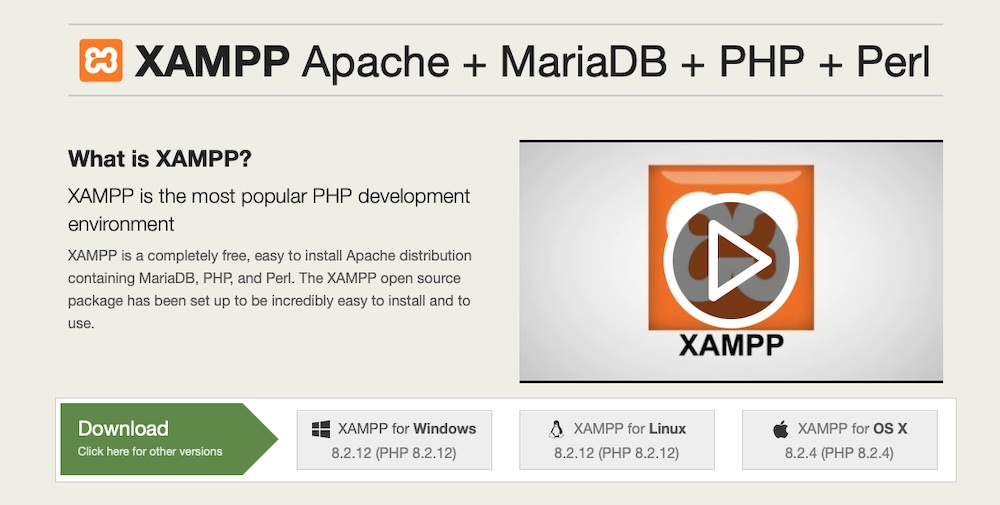
XAMPP is one of the most popular and widely-used local development environments, thanks to its flexibility and ease of setup. It includes everything needed to run WordPress locally including Apache (acting as the server software), MySQL (acting as the database type), and PHP (acting as the scripting language), all bundled into one package.
It works on Windows, macOS, and Linux, so it’s a go-to option for agencies. Its control panel is easy to use as well, so starting or stopping services like Apache and MySQL is simple.
Highlights of XAMPP:
- It’s a complete stack with Apache, MySQL, and PHP.
- It provides cross-platform support (Windows, macOS, Linux) so each team member can use their operating system of choice.
- There’s an easy-to-use control panel for managing services.
- It supports a wide variety of PHP projects.
- It has a large community around it and extensive documentation.
Installation Process:
To install XAMPP, first download the installer for your operating system (Windows, macOS, or Linux) from the XAMPP website. The installer includes Apache, MySQL, and PHP, so once you run it, XAMPP will install all the necessary components.
After installation, you can access XAMPP’s control panel to start Apache and MySQL services, after which you can install WordPress by downloading the package, placing it in the XAMPP htdocs folder, and configuring it through the web browser.
Price:
XAMPP is completely free and open-source.
4. MAMP

MAMP is another popular local development environment for macOS and Windows users. Like XAMPP, MAMP provides everything required to run WordPress locally, but with a user-friendly interface that simplifies setup and management.
It’s a flexible option that you can use to run multiple versions of PHP. This means testing WordPress sites under different conditions is super easy. Also, the Pro version of MAMP includes advanced features like virtual hosts, dynamic DNS, and the ability to simulate a live server environment.
Highlights of MAMP:
- It provides an easy setup for macOS and Windows.
- There’s support for multiple PHP versions.
- It includes Apache and MySQL.
- MAMP Pro offers advanced features like virtual hosts and dynamic DNS.
- It’s great for testing and debugging across different PHP environments.
Installation Process:
Installing MAMP is straightforward. Download the MAMP installer for macOS or Windows from the MAMP website. Run the installer, and it will set up Apache, MySQL, and PHP for you. Once installed, you can use the MAMP control panel to start the local server, after which you can download and configure WordPress.
Price:
MAMP offers a free version, which is sufficient for most projects. If your agency needs more advanced features like virtual hosts or dynamic DNS, you can upgrade to MAMP Pro, which starts at $89 for a single license.
5. LAMP
LAMP stands for Linux, Apache, MySQL, and PHP, and is another local development environment for developers—this time for those who prefer working on Linux systems. Like XAMPP and MAMP, LAMP provides all the essential components needed to develop and run a WordPress site locally. Since it’s designed specifically for Linux, it offers a more native development experience for those who work on that platform.
Highlights of LAMP:
- It provides full control over Apache, MySQL, and PHP configurations.
- This one’s ideal for agencies that prefer to use Linux.
- It’s excellent for replicating production server environments.
- LAMP is free and open-source.
Installation Process:
LAMP is designed for Linux systems, and installing it typically involves running a series of commands through the terminal. The process varies slightly depending on the Linux distribution, but generally, you’ll install Apache, MySQL, and PHP using the package manager like sudo apt install apache2 mysql-server php on Ubuntu.
Once installed, you can set up WordPress by downloading it and configuring Apache to serve the files from the correct directory.
Price:
LAMP is free and open-source.
6. WampServer

WampServer is a Windows-based alternative to LAMP, offering a complete local development environment that bundles Apache, MySQL, and PHP into an easy-to-install package. It’s designed specifically for agencies working on Windows, making it easier to set up WordPress or any PHP-based project locally.
With WampServer, managing your development stack is straightforward. It includes a control panel for switching between different versions of PHP, managing MySQL databases, and starting or stopping Apache services. This makes it a great option for agencies that want a powerful, flexible environment but need a user-friendly interface to manage it.
Highlights of WampServer:
- It’s designed specifically for Windows users.
- It provides easy installation and setup.
- You can switch between different PHP versions.
- It has built-in management of Apache and MySQL services.
- There’s a simple control panel for managing server settings.
Installation Process:
To install WampServer, download the installer from the WampServer website. Once downloaded, follow the on-screen instructions to install Apache, MySQL, and PHP on your Windows machine.
Next, place your WordPress files in the www directory located inside the WampServer folder. Finally, open your web browser and complete the WordPress installation by navigating to http://localhost/your-site-name.
Price:
WampServer is completely free.
7. Vagrant
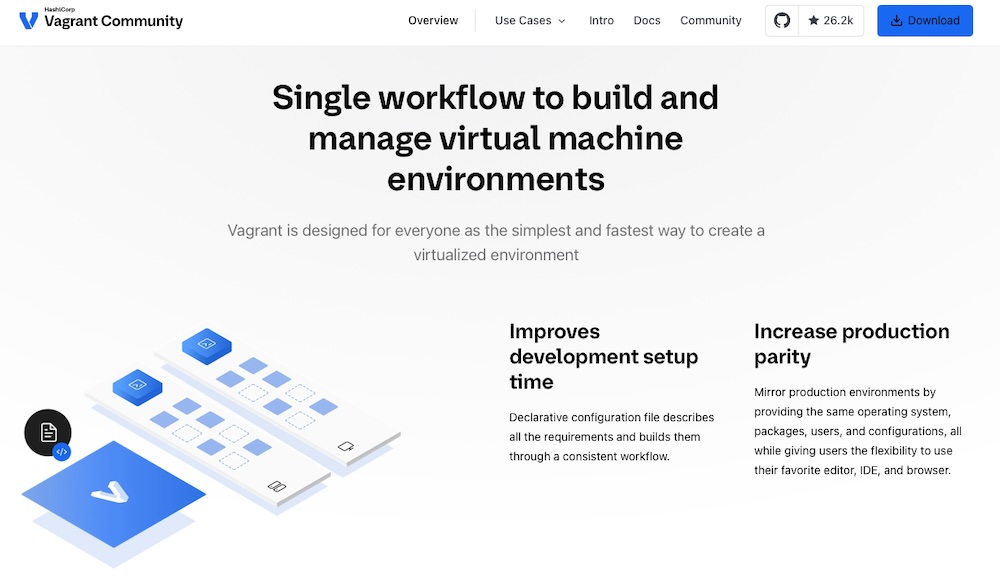
Vagrant is another powerful tool for creating and managing lightweight, reproducible, and portable development environments. It works by building virtualized environments so teams can configure multiple development stacks across different operating systems. It’s customizable and often used in combination with other tools like VirtualBox.
You can also use it to create isolated environments for different projects. This means you can run multiple versions of WordPress, test different PHP configurations, and ensure consistency between development and production environments without any conflicts. For agencies working on several projects simultaneously, this is a real advantage.
Highlights of Vagrant:
- It provides virtualized environments for full isolation.
- It works across multiple operating systems, so it meets the needs of team members with different preferences.
- Vagrant is fully-customizable with support for many provisioning tools.
- You can use it to create reproducible development environments, streamlining the development process.
- It supports collaboration through shareable environment configurations, making it a great choice for projects with multiple developers.
Installation Process:
To install Vagrant, download the installer for your operating system from the Vagrant website. You’ll also need a virtualization tool like VirtualBox, which Vagrant uses to create virtual machines.
Once Vagrant is installed, you can set up a development environment by creating a Vagrantfile and running simple commands like vagrant up to start the virtual machine. For WordPress, you can use pre-built Vagrant configurations, like Varying Vagrant Vagrants (VVV), which simplifies the process.
Price:
Vagrant is free and open-source, though some pre-configured environments or plugins may come with additional costs depending on your specific project needs.
8. Laragon
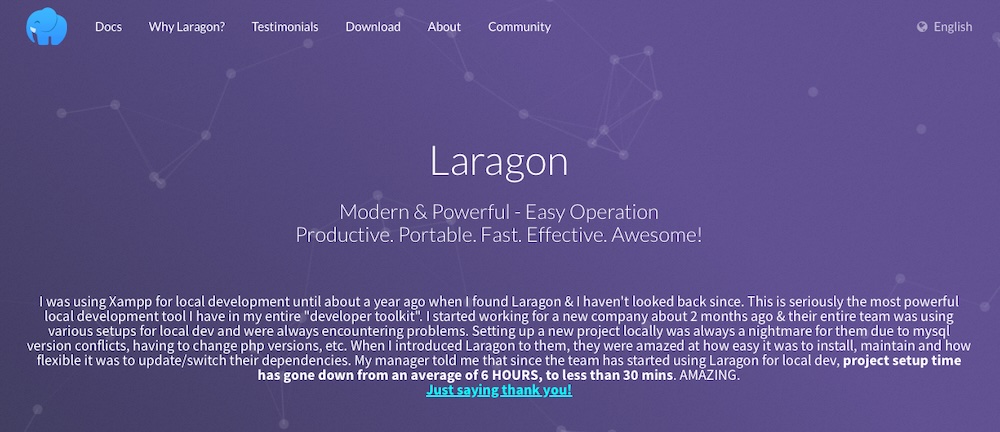
Laragon is a solid choice too, designed for speed and simplicity. It’s perfect for WordPress agencies that need a fast, easy-to-use solution with minimal configuration. While it supports a variety of tech stacks, Laragon is most useful for its out-of-the-box WordPress support. Team leads who want a hassle-free way to spin up new WordPress projects will have a lot of luck here.
One of Laragon’s biggest advantages is its focus on performance. It’s designed to be fast, which means you can start and stop services in seconds. The user interface is straightforward, too, so managing multiple projects, databases, and even different versions of PHP should be no trouble at all.
Highlights of Laragon:
- It’s lightweight and fast.
- Installation and setup are relatively easy.
- It includes built-in support for WordPress and other tech stacks.
- You can use it to switch between PHP versions.
- It’s portable and can be installed and run from a USB drive.
Installation Process:
Laragon is very easy to install. Download the installer from the Laragon website, run it, and follow the instructions. Once installed, you can start Apache and MySQL services through the Laragon control panel. Laragon provides one-click setups for new WordPress sites, so after installation, you can quickly deploy WordPress by selecting it from the menu and letting Laragon handle the rest.
Price:
Laragon is free to download and use.
9. Docker
Docker has changed how agencies create and manage local environments—and this applies to WordPress development as well. It works by using containerization. This means you can package all the dependencies, libraries, and configurations a WordPress site needs into isolated containers. Docker is an excellent option then for agencies that need consistency across development, staging, and production environments.
Use it to create fully-isolated environments that can be easily shared and replicated across your organization. You can also run multiple containers simultaneously, and it supports version control for the entire environment.
Highlights of Docker:
- It relies on containerization for isolated, portable environments.
- Docker is consistent across development, staging, and production.
- You can use it to create easily replicable and shareable setups, ensuring that your team members all work from the same foundation.
- It supports running multiple containers for different projects.
- It works across different operating systems.
Installation Process:
Installing Docker is straightforward, too. Download the installer for your operating system (Windows, macOS, or Linux) from the Docker website and follow the setup instructions. Once Docker is installed, you can pull pre-configured WordPress containers from Docker Hub using simple commands like docker pull wordpress. These containers come with Apache, MySQL, and PHP, so you don’t need to set them up separately.
Price:
Docker itself is free, though enterprise-level users may require a paid subscription based on usage and specific needs. Pricing for Teams, which includes up to 100 users, costs $9 per user/month.
10. Docker-Based Solutions (DDEV, Lando)
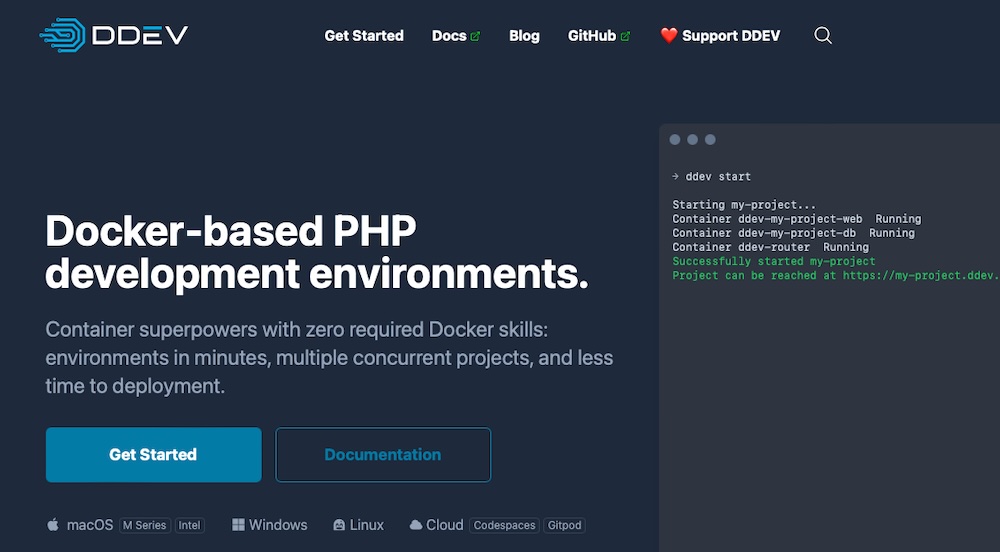
While Docker itself is powerful, Docker-based solutions like DDEV and Lando make it even more accessible and useful for WordPress development specifically. These tools provide pre-configured environments built on top of Docker with a simple interface and additional features for local WordPress development.
DDEV is specifically geared toward PHP and WordPress development and will serve agencies in need of a ready-made solution that removes much of Docker’s complexity. Create local WordPress environments in minutes, complete with database support and the flexibility to customize configurations as needed.
Lando, on the other hand, offers a broader range of use cases, supporting WordPress and other CMS platforms and development stacks. It provides out-of-the-box integration with version control systems like Git. Teams collaborating on complex WordPress projects stand to benefit the most here.
Highlights of Docker-Based Solutions:
- They simplify Docker’s more complex aspects.
- These tools provided fast setup with customizable configurations.
- They’re ideal for teams and collaborative projects.
Installation Process:
For DDEV, download and install the tool from the DDEV website, and then install Docker if you haven’t already. After installation, you can start a new WordPress project by running a few commands to configure the environment, like ddev config to set up the project and ddev start to launch the WordPress site.
For Lando, download the installer from the Lando website, as you have the other development environments discussed here, and follow the installation steps for your operating system. Once Lando is set up, you can create a new WordPress environment using Lando’s pre-configured recipes by running lando init to configure the project and lando start to begin the development environment.
Price:
Both DDEV and Lando are open-source and free to use, though paid support options are available for teams that require dedicated assistance.
Comparison of the Best Local WordPress Development Environments
With so many local WordPress development tools available, it’s important to compare the key features and capabilities of each. The comparison table below highlights the main advantages and features for each environment, so you can select the one that best fits your needs.
| Tool | Key Features | Best For |
| Studio | Automatic syncing with WordPress.com, pre-configured instances, developer tool integration | Agencies working on WordPress.com sites |
| InstantWP | Portable, no server configuration, runs from external drives | Quick testing, portable development |
| XAMPP | Complete stack with Apache, MySQL, PHP, cross-platform support | Developers needing flexibility and full control |
| MAMP | Supports multiple PHP versions, Pro version offers virtual hosts and dynamic DNS | macOS users, testing multiple PHP versions |
| LAMP | Native to Linux, customizable stack, full control over Apache, MySQL, PHP | Advanced Linux developers |
| WampServer | Easy-to-use control panel, switch between PHP versions, manage Apache and MySQL services | Windows developers requiring flexibility |
| Vagrant | Virtualized environments, reproducible setups, cross-platform support | Agencies working on multiple complex projects |
| Laragon | Lightweight, fast setup, portable, supports multiple tech stacks | Developers needing speed and simplicity |
| Docker | Containerization, isolated environments, consistent development across platforms | Developers familiar with containers, multiple site management |
| DDEV, Lando | Pre-configured Docker environments, easy version control integration (Lando), fast WordPress setups (DDEV) | Developers who want Docker’s power with simplified management |
How to Choose the Right Local Development Environment
Choosing the best local WordPress development environment matters a lot for optimizing workflow and ensuring a project goes smoothly. The right environment will depend on several factors, so let’s explore these key considerations next.
Assess Project Size, Complexity, and Specific Needs
The scale and scope of your typical project should be a primary factor when selecting a local environment. If you often handle smaller, less complex projects—like building simple WordPress sites or testing themes—a lightweight, easy-to-use environment works well. These tools make it easy to get a development environment up and running quickly without the need for extensive configuration.
If something more complex is your standard project, like customizing a high-traffic ecommerce site or managing multiple development configurations for client projects, a more robust solution is preferable. Something like Docker or Vagrant would be more suitable.
Required Skill Level and Learning Curve
Familiarity with technical environments is another critical factor. If your team is new to WordPress development or local environments, a tool that’s more straightforward is best. Prioritize something with a user-friendly interface that offers control of essential services without needing expert-level coding skills.
Of course, if a project requires extensive customization, you can expect to deal with a steeper learning curve. That means having a solid understanding of command-line interfaces, virtualization, or containerization and an ability to configure environments manually.
Consider Team Collaboration Needs
Agencies and larger development teams need to collaborate to get work done. There’s no way around it. So, an environment that supports consistency and shareability and allows multiple developers to work on the same project without conflicts is a must. Tools that let you create isolated, reproducible environments are helpful in these scenarios and ensure everyone on the team has the same configurations.
Pre-configured environments that reduce setup time work, too. Anything that helps teams manage multiple projects simultaneously (without causing conflicts) will be a win. Also, look for version control support. Git integration makes it easier to track changes and ensure everyone is working on the latest version of the project.
Budget Considerations
Budget matters when choosing the right development environment. Many local environments, including XAMPP, WampServer, LAMP, and Laragon, are free to use.
Premium versions of some tools offer added features that might be worth the investment. For example, MAMP Pro provides advanced capabilities like virtual hosts, dynamic DNS, and the ability to simulate multiple server configurations. These features enhance the development process by a great deal, especially if a project requires testing in different environments.
When considering your budget, think about the extra features a premium version offers and whether they’re necessary for your workflow or if a free tool with solid community support can meet your needs.
Community Support and Documentation
A development environment with strong community support and comprehensive documentation should be a priority, too. These aspects can make a huge difference in how effectively you can troubleshoot issues and learn as you go, too. It’s usually a good idea to opt for a tool that has established developer communities that contribute to forums, guides, and tutorials. This shared knowledge makes it easier to solve problems.
Benefits of Using a Local Environment for WordPress Development
Developing WordPress sites locally offers a lot of advantages, making it a go-to approach for many agencies and teams. Whether building a simple blog or a complex ecommerce site, working in a local environment provides more privacy, control, flexibility, and speed. Here’s a look at some common benefits of using a local environment to create a WordPress site:
Faster Development Cycles
One of the biggest perks of developing locally is the speed. Since everything runs directly on a local computer, there’s no slowdown from a bad internet connection or server delay. Any changes made—whether it’s modifying code, updating themes, or installing plugins—are applied instantly. Plus, there’s no need to upload files to a remote server to see changes, which really accelerates the development process.
Local environments also allow for speedy project creation. This means that agencies can easily launch a new WordPress instance and dive in without any extra setup time.
Enhanced Security
When developing locally, the active work is disconnected from the internet. This makes for better overall security and lowers the risk of exposing sensitive data or configuration settings. This isolation is particularly helpful for projects that require a higher level of confidentiality or when experimenting with new code. It’s a safer space to test and build without the worry of data leaks or security breaches.
It also means agencies can safely find and fix bugs or vulnerabilities before pushing anything live.
Cost-Effective Development
Another benefit of local development is the cost savings. There’s no need to pay for hosting while building a site, which can add up when working on multiple projects at the same time. Since everything runs on your machine, there’s no need for expensive cloud services or third-party staging environments.
Better Testing and Debugging
Local environments are perfect for testing and troubleshooting. Experiment with different versions of WordPress, PHP, and MySQL without affecting any live sites. When building custom themes or plugins, this comes in handy for catching and fixing errors early on.
Simulate different environments—like running various PHP versions or creating a multisite setup—to ensure your site will function smoothly once it’s live. The ability to test thoroughly in a local environment minimizes bugs and performance issues when the site is deployed to production.
Streamlined Collaboration
For agencies, local environments make collaboration much easier. Sharing a consistent setup across all machines means everyone can work in the same environment. This consistency makes the development process more efficient and helps teams work more smoothly together.
Local development environments also integrate well with version control systems, allowing team members to manage code, collaborate on different parts of the project, and track changes. So, when multiple developers are working on a single project simultaneously, conflicts are less likely to happen.

 Automattic